Navigate to Admin -> Schedule Imports. This will will display a running list of successful synchronizations between JumpRope and schedule data from your school's SIS. Note, this view is for schools/districts that utilize JumpRope's schedule and enrollment SIS integration features. 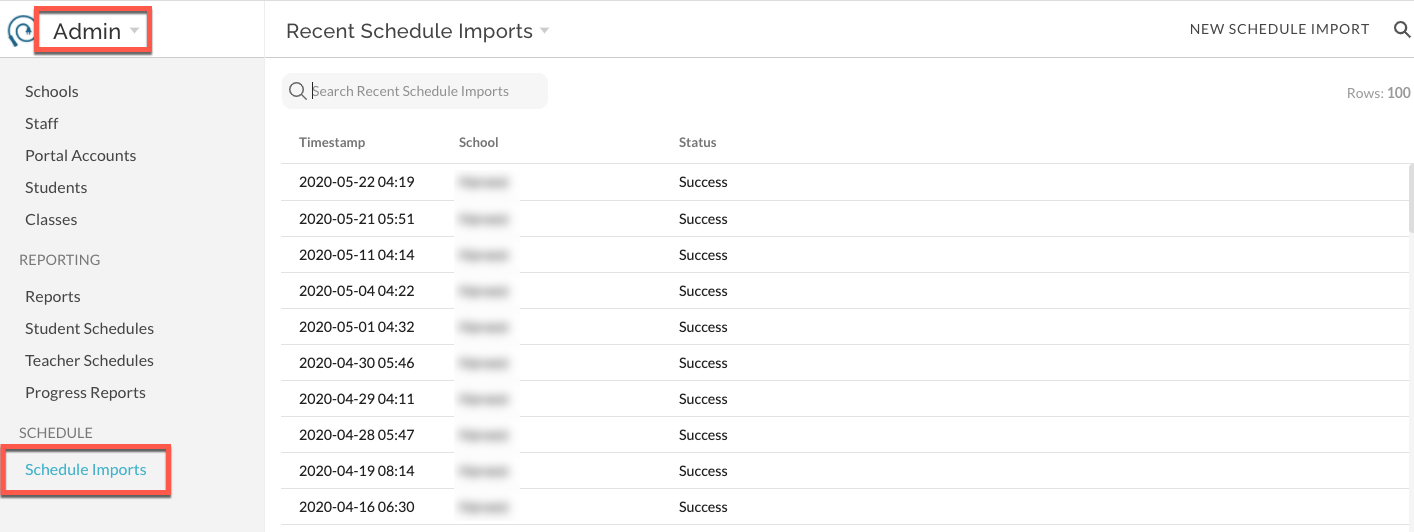
Start an import right away with Sync now
Schools whose schedule syncs automatically from your student information system normally import on the regular schedule. If you don't want to wait, administrators can start an import from this page with Sync now.
Who sees it: Administrators with access to the admin console at a school that syncs automatically from its student information system. If your school uploads schedule files instead, you won't see the button.
To start an import:
- Navigate to Admin -> Schedule Imports.
- Select Sync now.
- Choose your school. If you only have one school that can sync, it is already selected.
- Select Sync now again. A message tells you the import has started and to check back in a few minutes.
Each school can sync once every 15 minutes. If you try sooner, JumpRope tells you how long to wait and doesn't start a second import. A school that is already queued can't be started again until its queued import has run.
District administrators
District administrators can choose more than one school in the Schools box.
- Choose one school and the import starts right away.
- Choose several schools and they are queued. The schools run one after another, each starting a few minutes after the one before it finishes.
After you select Sync now, a summary lists each school as queued, or explains why it wasn't.
Read the result in the list
Each import appears in the Recent Schedule Imports list with a status:
- Queued - waiting for its turn. Queued schools appear in the list right away.
- In Progress - the import is running. It usually finishes within a few minutes.
- Success - the import finished.
- Failed with Errors or Failed Validation - the import did not complete. Try again, and contact JumpRope Support if it keeps failing.
The list refreshes shortly after you start an import. If you don't see your row yet, wait a moment and refresh the page.
Was this article helpful?
That’s Great!
Thank you for your feedback
Sorry! We couldn't be helpful
Thank you for your feedback
Feedback sent
We appreciate your effort and will try to fix the article