Three options:
To copy to other classes - 1. In Plan, edit an existing assessment or Create -> New Assessment. Use the Classes dropdown in the editable features of an assessment to copy the assessment to the existing class or other classes. Any aligned standards will also be brought into the other class(es). 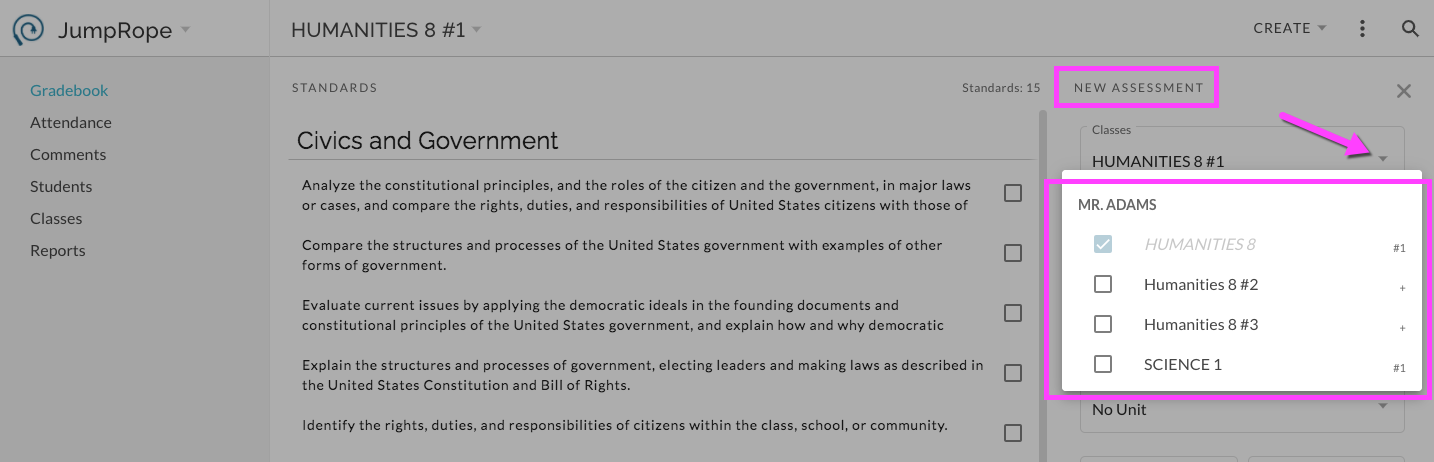
or to copy into the same class - 2. From the More menu for an assessment in Plan, select Copy Assessment. A copy will be created in the current class along with any aligned standards.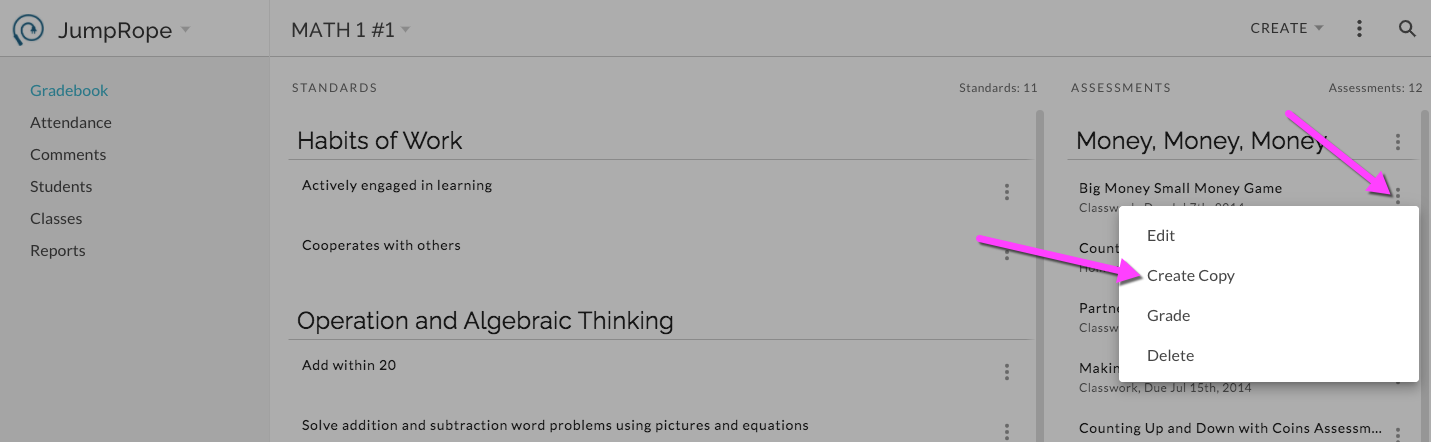
or to copy into the same class - 3. In Grade, from the More menu for an assessment, select Copy Assessment. A copy will be created in the current class along with any aligned standards.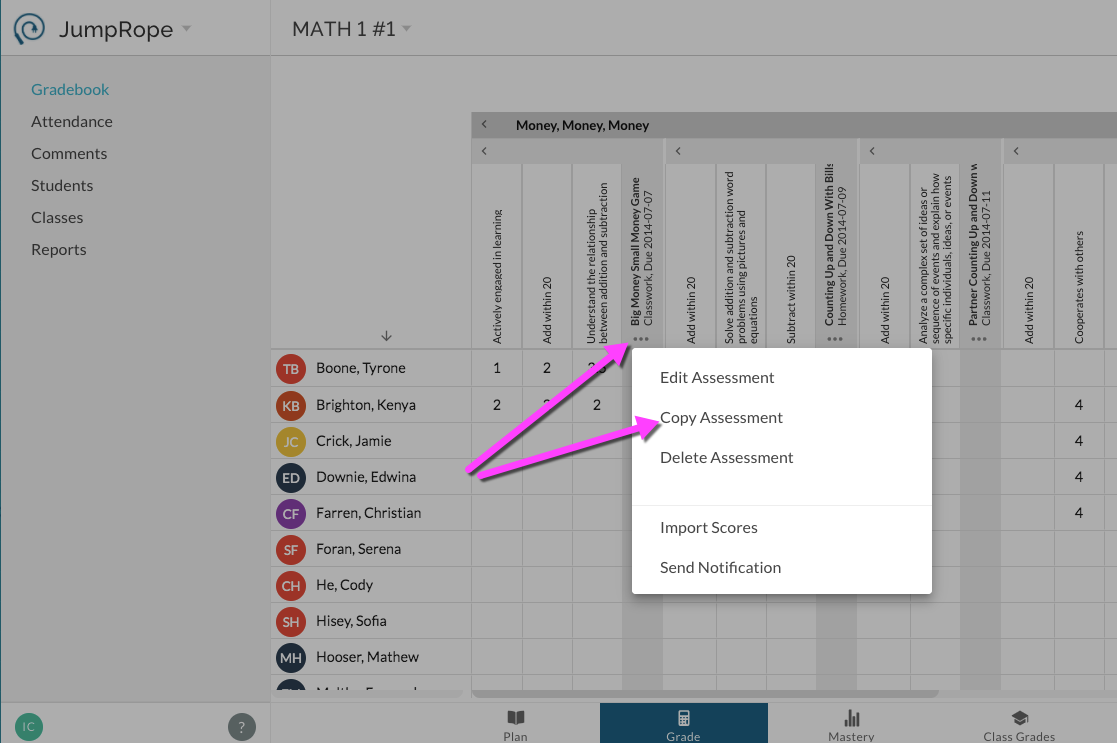
For more see Reference - How do I copy a unit, assessment and/or standard to re-use?
Was this article helpful?
That’s Great!
Thank you for your feedback
Sorry! We couldn't be helpful
Thank you for your feedback
Feedback sent
We appreciate your effort and will try to fix the article