Staff Account login email usernames can be edited by a user with Admin permissions or by the user themselves.
This new email username is immediately available for the user to login with. A user's pre-existing password is still active and associated with the account. Google SSO single-sign-on is immediately available if the address is GSuite-based. All historical data is maintained within the account.
Administrative changes
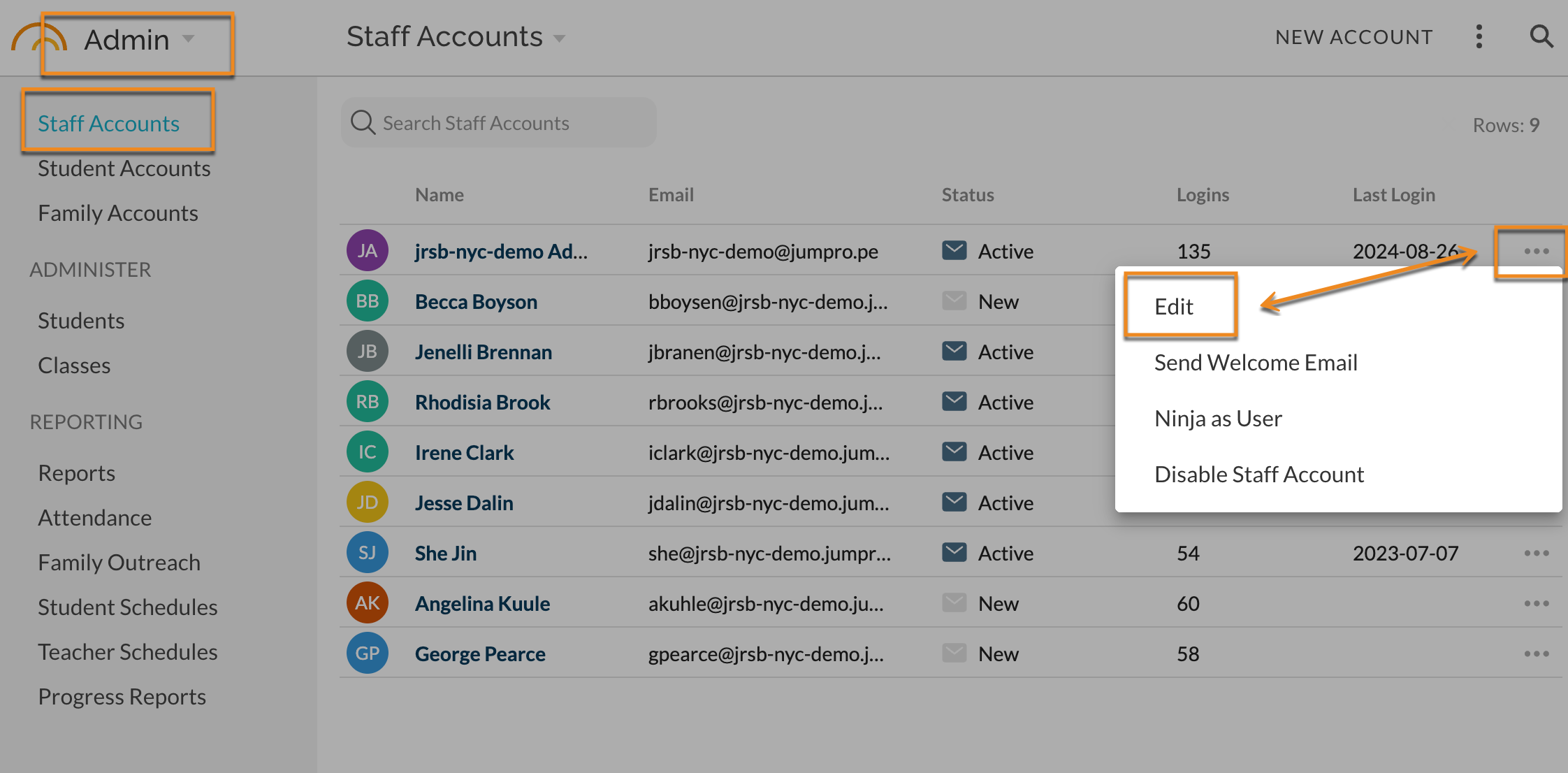
In Admin - Staff Accounts, select the ... extras menu for the desired account. Choose Edit.
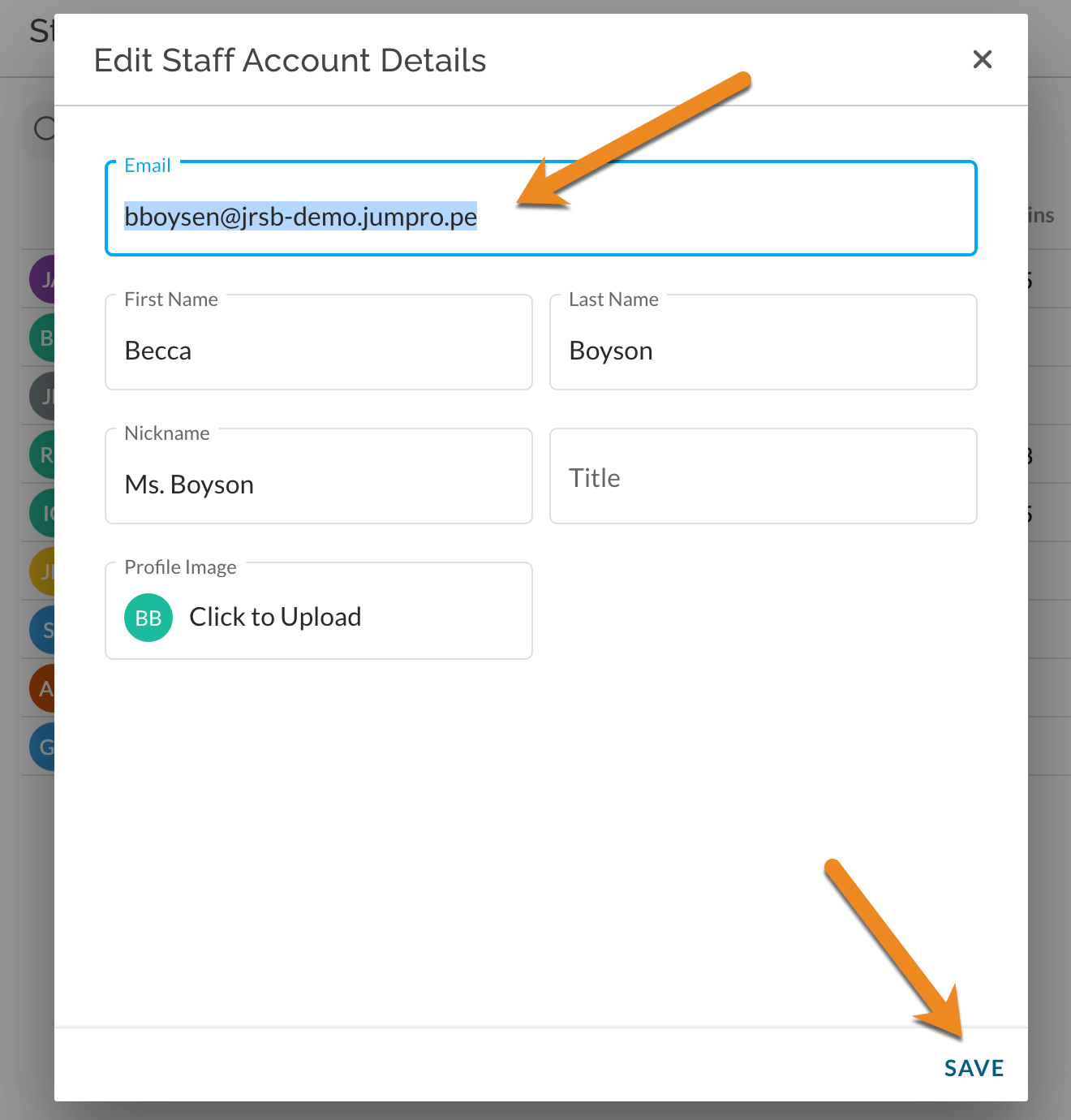
In the Email field, replace the existing email address with the new email username. Click Save.
This new email username is immediately available for the user to login with. A user's pre-existing password is still active and associated with the account. Google SSO single-sign-on is immediately available if the address is GSuite-based.
User Changes their own Email Username
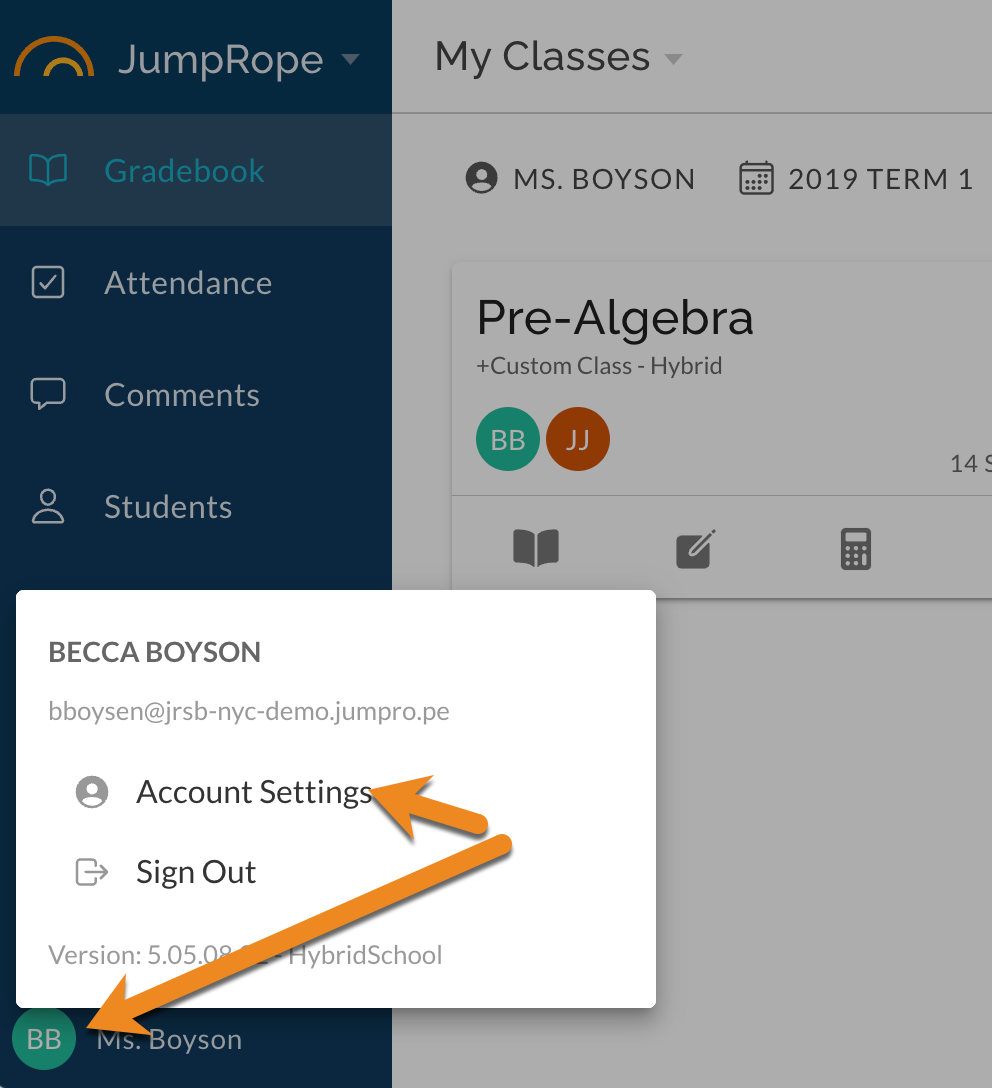
Click on the user icon/avatar and select Account Settings.
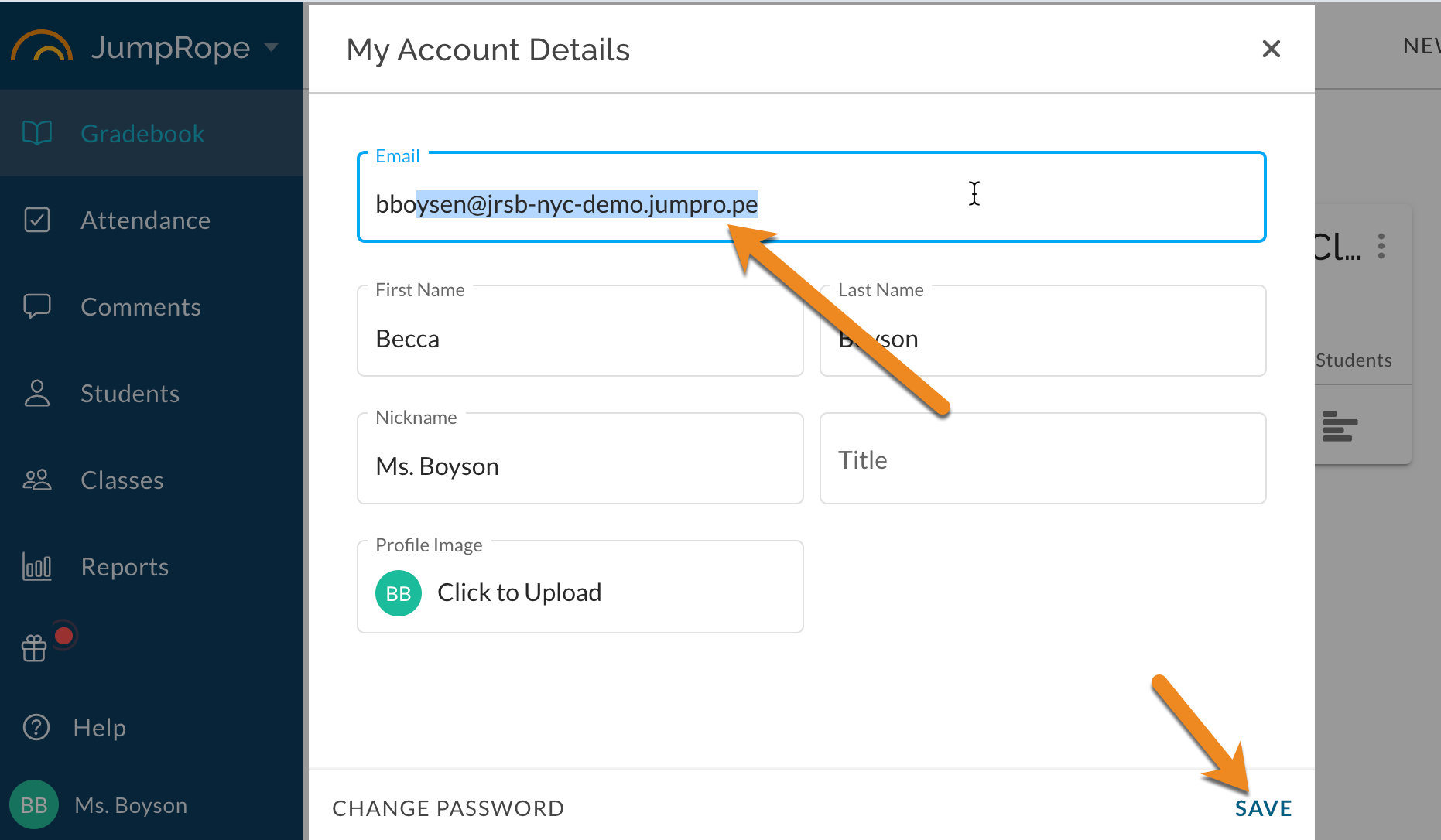
In the Email field, replace the existing email address with the new email username. Click Save.
This new email username is immediately available for the user to login with. A user's pre-existing password is still active and associated with the account. Google SSO single-sign-on is immediately available if the address is GSuite-based.
Was this article helpful?
That’s Great!
Thank you for your feedback
Sorry! We couldn't be helpful
Thank you for your feedback
Feedback sent
We appreciate your effort and will try to fix the article