Navigate to Admin -> Staff and change the view to Staff Account Roles.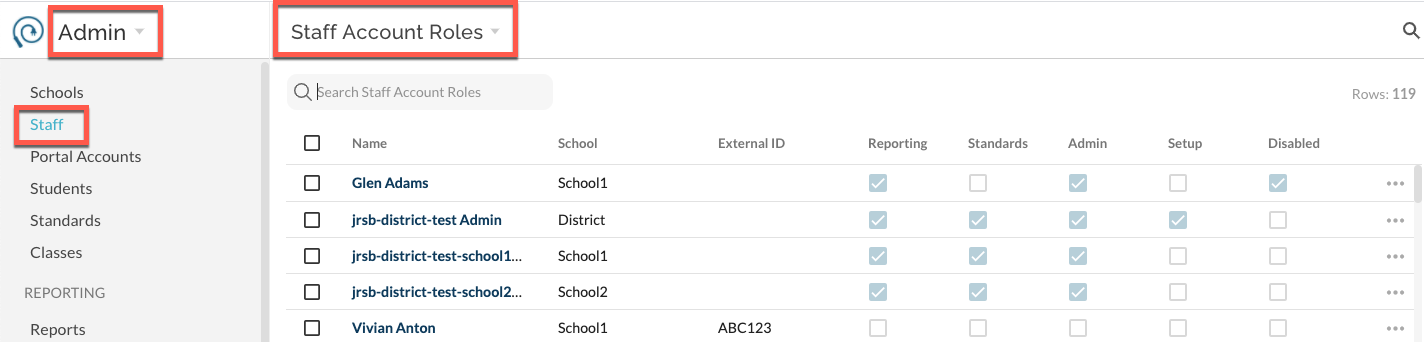
Search for a user and select to edit their permissions by clicking on the ... more menu and Edit. Note, if a user has access to more than one school within your district, you will see a role per row for them; there may be more than one row per name. Select the desired permissions for the staff user's role. 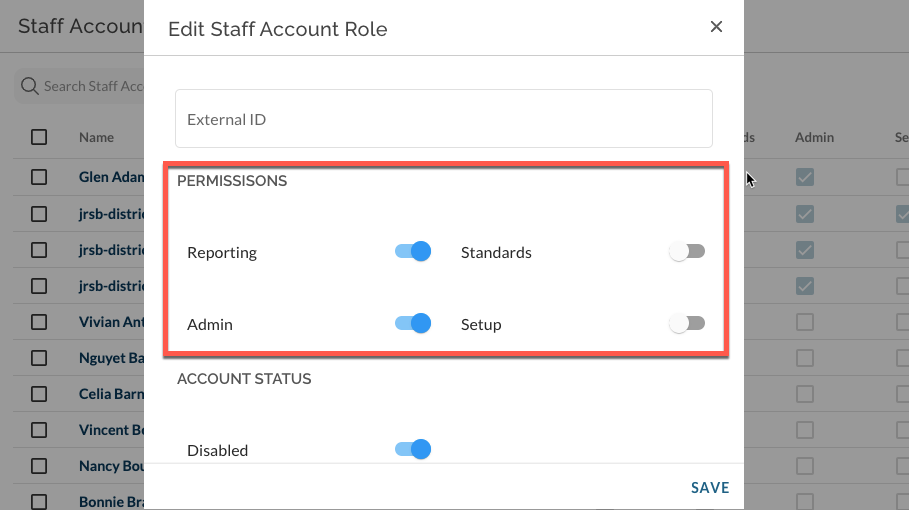
To add a new role to a staff account , select the staff name in blue from the list. Click new role to the top right of the role list.
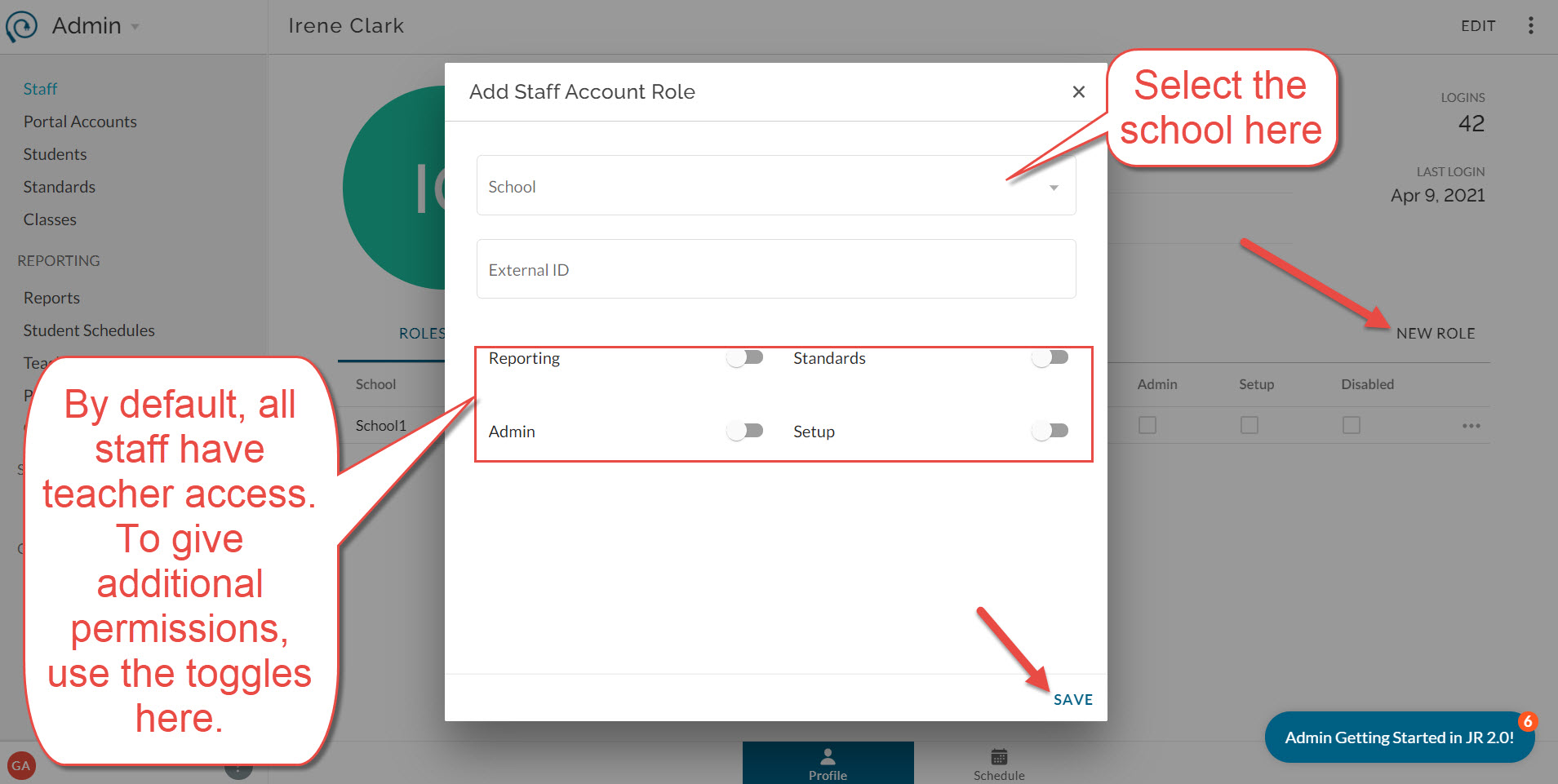
For more information on what each permission includes, see here.
Was this article helpful?
That’s Great!
Thank you for your feedback
Sorry! We couldn't be helpful
Thank you for your feedback
Feedback sent
We appreciate your effort and will try to fix the article